Plan, review and publish staffing
Availability, shifts, claims and publication have different jobs.
Before you start
Manager sign-in and instructor profiles. Availability and eligibility must cover planned work; publishing a window alone does not create assigned teaching capacity.
Open the manager workspaceSteps
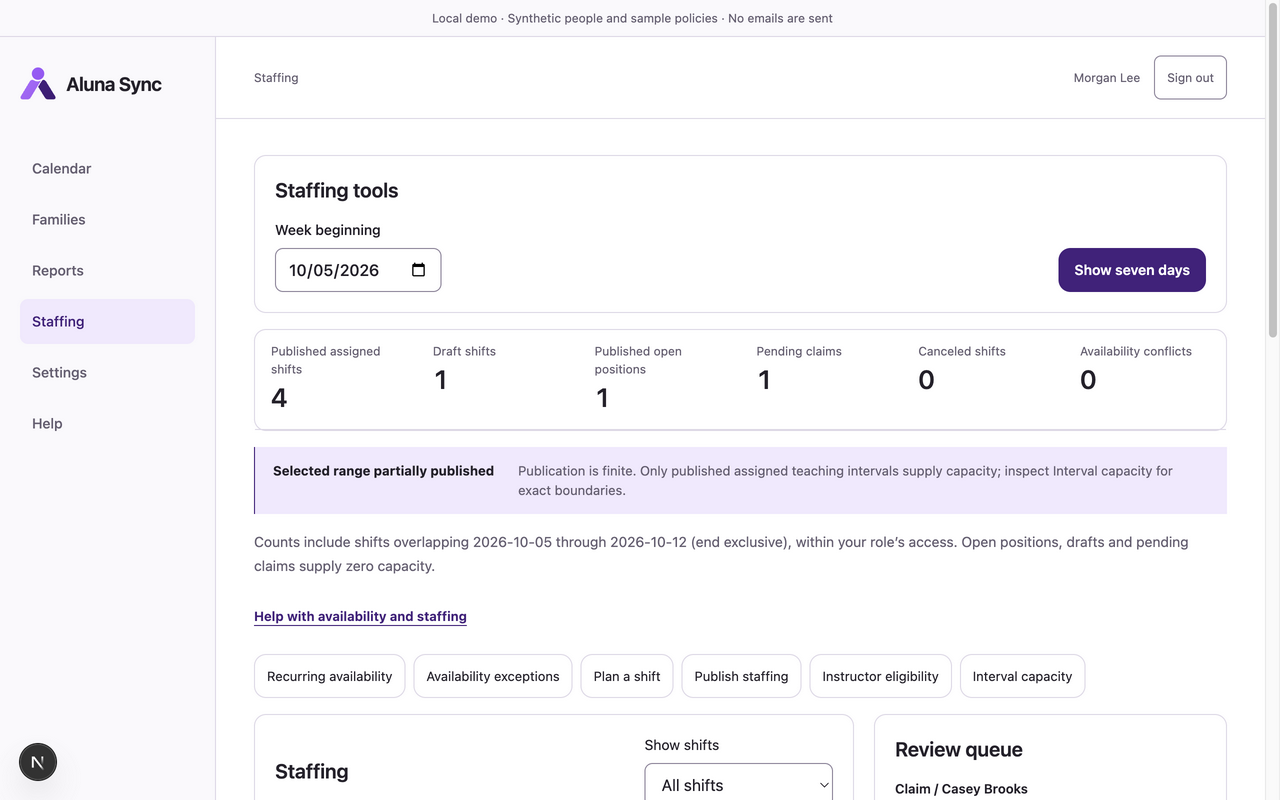
- Open Staffing and choose the date range with Show seven days. Use Recurring availability and Availability exceptions to review rules and dated changes. Review queue highlights pending claims and availability conflicts.
- Choose Plan a shift. Select Instructor or an open position, enter Shift start and Shift end, and use Add break for any break intervals. Choose Create draft shift.
- Select a shift to inspect it. Edit shift and breaks → Save shift changes updates it; Cancel shift cancels eligible staffing. Existing booking coverage is rechecked before reductions are accepted.
- Use Review claim in Review queue, then Approve claim or Reject claim. Approval assigns that open published shift; a pending claim does not supply capacity.
- Open Instructor eligibility to review Active instructor and private-teaching eligibility controls, then choose Save eligibility for the instructor. These settings affect assignment and private capacity; they do not grant an account role.
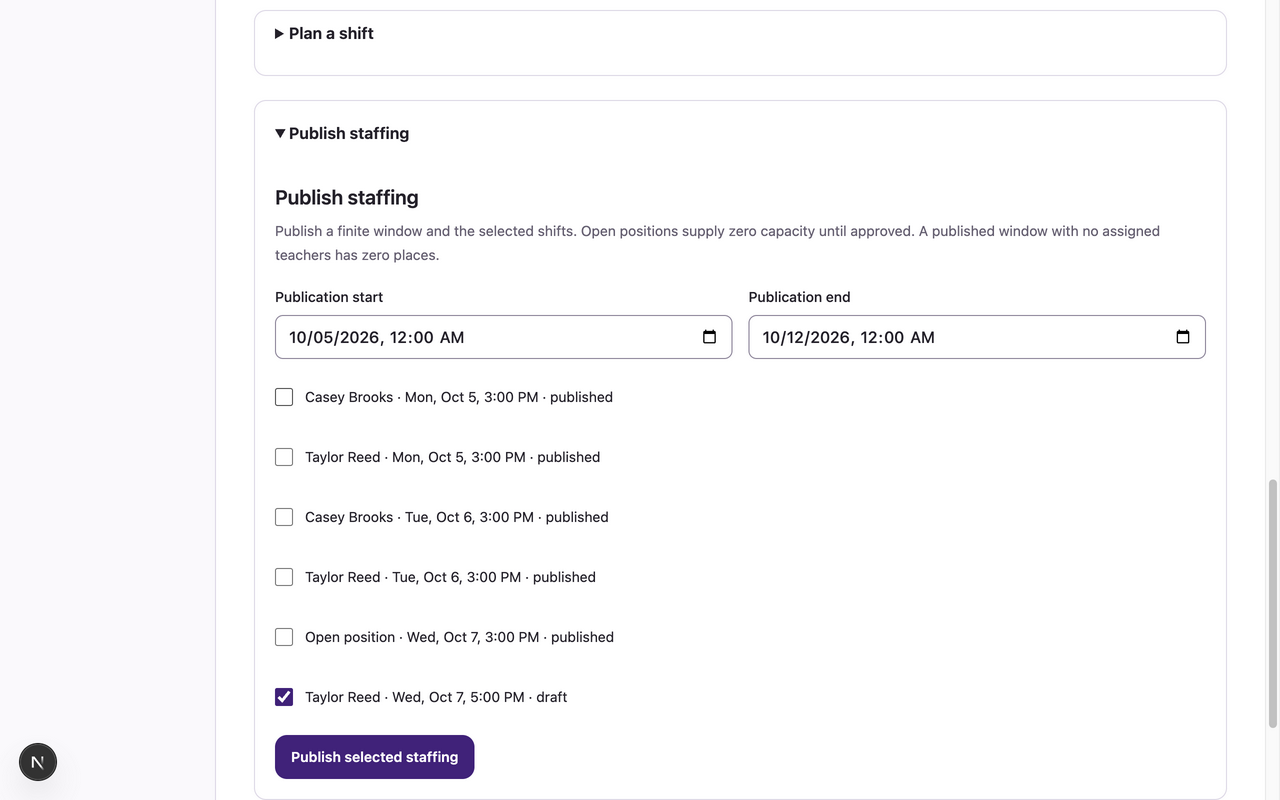
- Open Publish staffing. Set Publication start and Publication end, explicitly select the shifts, then Publish selected staffing. Verify the resulting published range and assigned shifts in Calendar and Interval capacity.
What to expect
Only effective published assigned staffing, excluding breaks and conflicting reservations, supplies bookable capacity. Open positions, drafts and pending claims supply none. Group capacity is evaluated across the center, not per visual lane.
If something goes wrong
- Availability conflicts preserve assigned shifts and require review. Adjust the shift or availability and recheck coverage; do not assume a warning removes work.
- Stale shift revisions require refreshed details and another save. A reduction that strands bookings is rejected; use the explicit absence/coverage workflow for a real absence.
- A published range with no assigned instructors has zero places. Verify assignments, breaks, private eligibility and whole-interval capacity before telling families a time is available.
Examples from a synthetic center
Screenshots use fictional people and sample dates/policies. Your center’s labels, dates and configured values may differ. All steps above are complete without images.