Record attendance and resolve coverage incidents
Keep correction history and preserve bookings during an absence.
Before you start
Manager sign-in. Reports use center-local dates; choose a range of up to 93 days. For absence entry, the form explicitly uses your device timezone.
Open the manager workspaceSteps
- Open Reports. Set From and Through (one day for a daily roster), then Load report. Review Attendance and the relevant student/session rows.
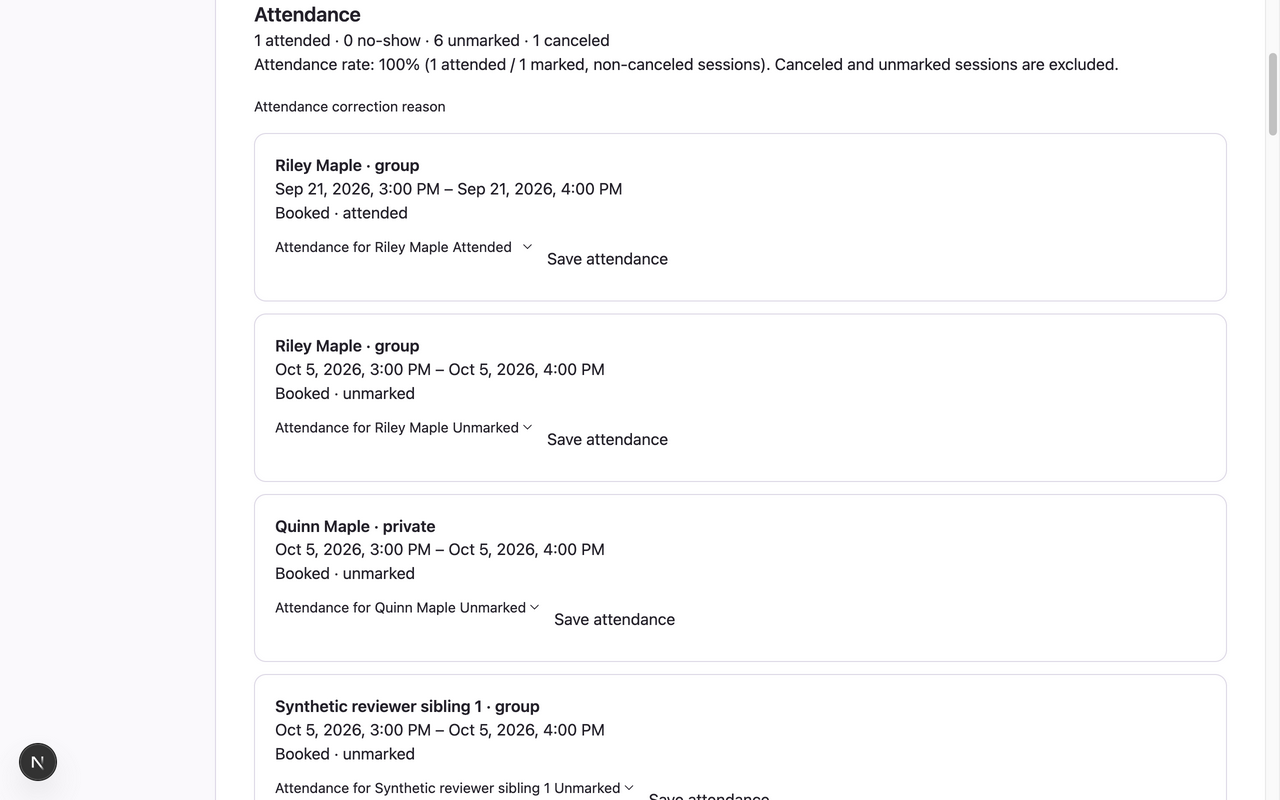
- Enter Attendance correction reason, choose Attendance for the student as Unmarked, Attended or No-show, and Save attendance. Every save requires a reason and the current revision.
- Review Weekly usage, staffing/usage, waitlist demand and Coverage incidents. Use Export history CSV, Export weekly usage CSV, Export staffing CSV or Export waitlist CSV for the loaded range.
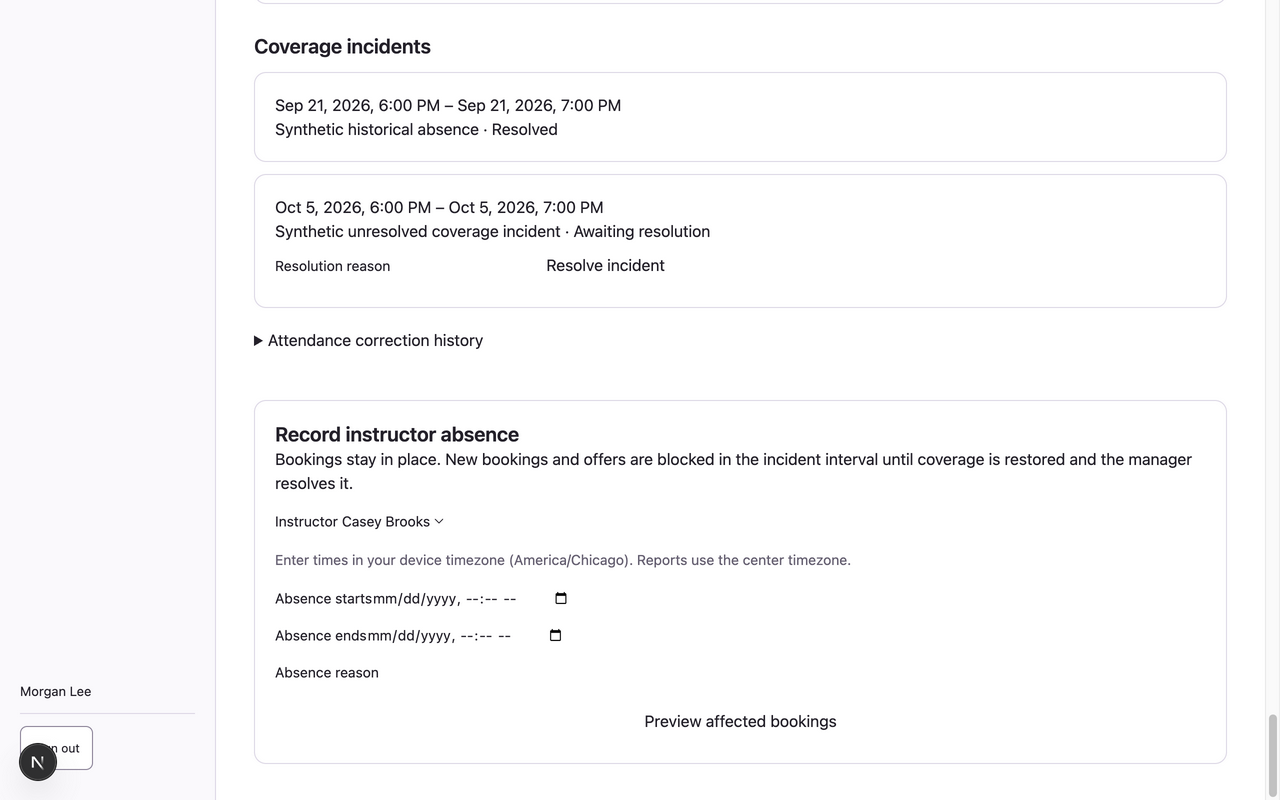
- For an absence, use Record instructor absence. Choose Instructor, Absence starts, Absence ends and Absence reason. Respect the displayed device timezone, then Preview affected bookings.
- Review the affected reservations and qualified private replacement candidates, then Record absence and flag bookings. Bookings remain in place; new demand is blocked in the incident interval.
- Restore coverage using staffing/assignment tools and reconcile affected sessions with families. Reload Reports, enter the incident resolution reason and choose Resolve incident only after coverage is valid.
What to expect
Attendance corrections retain their history. Absences preserve reservations while flagging coverage; resolution rechecks coverage before unblocking demand.
If something goes wrong
- Stale attendance or incident revisions require Load report again and a fresh review. A correction reason is mandatory; it should explain the change without sensitive account details.
- Ordinary shift cancellation cannot strand bookings. An explicit absence is the supported route to record missing coverage, not a shortcut to cancel family reservations.
- Attendance rate excludes canceled and unmarked sessions. Targets remain advisory and partial weeks are labeled. Parents get only their family’s report; instructors cannot read these student reports.
Examples from a synthetic center
Screenshots use fictional people and sample dates/policies. Your center’s labels, dates and configured values may differ. All steps above are complete without images.