Manage family bookings and teaching assignments
Reservations and teaching assignments are separate actions.
Before you start
Manager access, an existing family/student, published capacity, and an eligible instructor for assignment. Past/current calendar sessions are read-only.
Open the manager workspaceSteps
- Open Families → Family records and choose the family and Booking student. In Choose a session, fill Session date, Session time, Session type and Session duration. Find available times or use the finite weekly pattern.
- Use Book <child> too to book siblings on the same schedule. Choose Preview booking change, review every child/date, explicitly select available dates, acknowledge the policy, then Confirm selected dates. The batch confirms together; later cancellation/reschedule applies only to the chosen child. For existing upcoming sessions, use Cancel session or Reschedule session, choose Change scope, preview affected dates and confirm.
- For a late cancellation/reschedule, acknowledge the saved policy or enter Manager waiver reason (optional) when applicable. The waiver is recorded; no payment or fee is calculated.
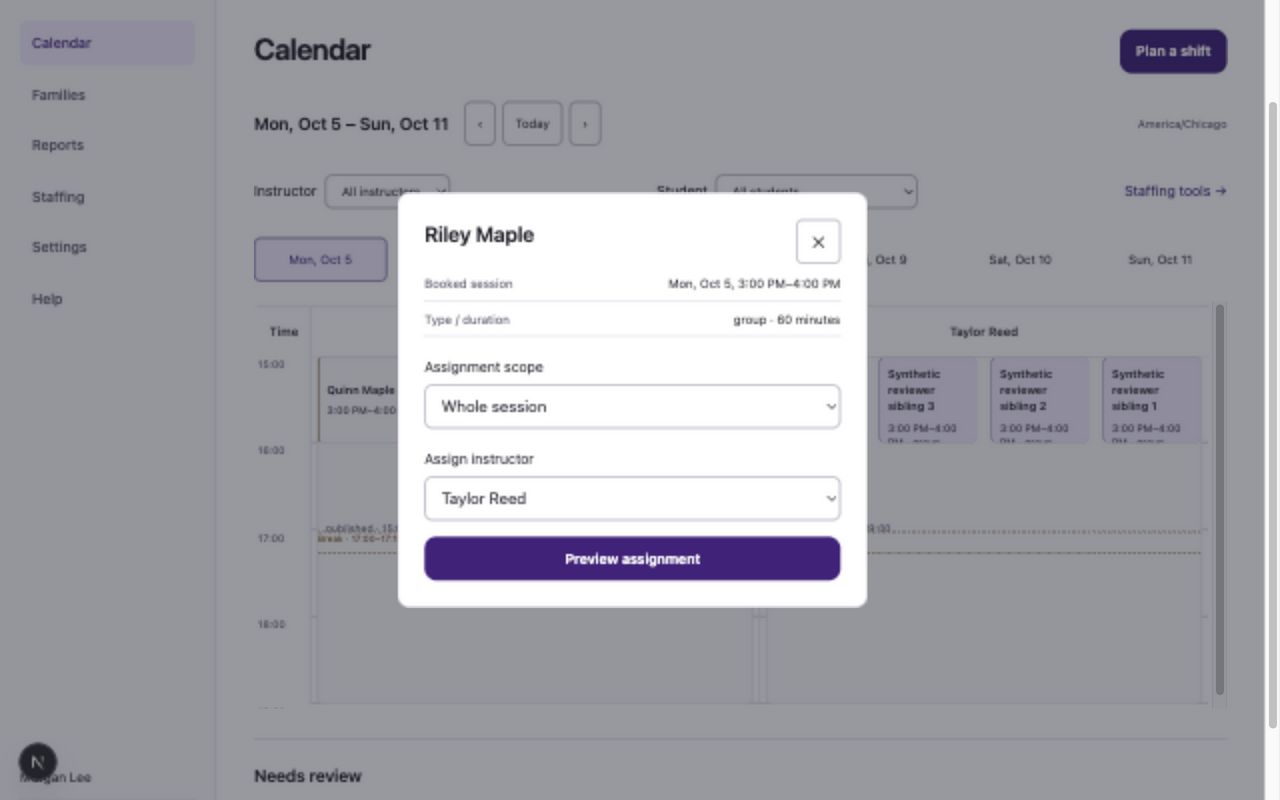
- Open Calendar and select a future booked session. In its dialog, choose Assign instructor. For a group handoff, choose Assignment scope: Whole session or the available segment.
- For a group session, choose Preview assignment, read the coverage validation, then Confirm assignment. For a private session, Reassign private session saves directly after server capacity checks. Verify Assignment saved. On a family booking record, choose Private instructor and Reassign private session for a private reassignment.
What to expect
Booking changes alter the reservation only after confirmation. Private assignments reserve exclusive eligible capacity; group-teaching assignments describe teaching allocation without changing the student’s date/type/duration.
If something goes wrong
- If a booking preview is stale or replacement dates are unavailable, preview again. A failed reschedule preserves the original booking.
- If Assignment changed or a stale revision appears, refresh the calendar, reopen the session and preview the current assignment again. Never overwrite a colleague’s newer change using an old dialog.
- Group handoff segments must stay within covered intervals. Dragging is optional; the labeled dialog controls work with keyboard and on mobile. Parents cannot see assigned instructors; instructors receive aggregate teaching counts, not student records.
Examples from a synthetic center
Screenshots use fictional people and sample dates/policies. Your center’s labels, dates and configured values may differ. All steps above are complete without images.