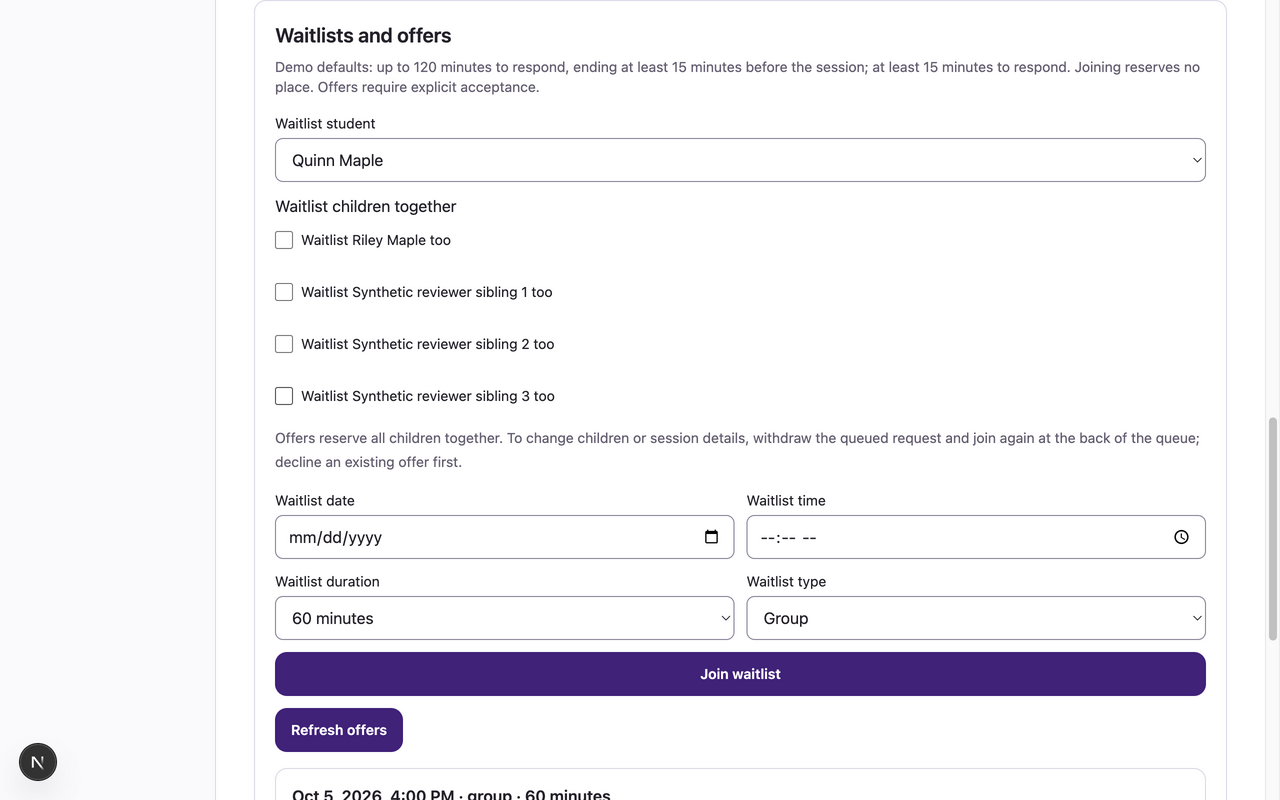
Join a waitlist and respond to an offer
A request becomes a booking only after an offer is accepted.
Before you start
An active student and an otherwise eligible full session. Offers have a displayed expiry and require current access and policy acknowledgment.
Open the parent workspaceSteps
- In Schedule, select a full time and choose Join waitlist where available. Alternatively, open My Sessions → Waitlists and offers.
- Choose Waitlist student, optional Waitlist <child> too selections, the date/time, Waitlist duration and Waitlist type, then Join waitlist. Check the request status; queued means you have no confirmed place.
- Choose Refresh offers. Review each offer’s session and Expires time. Check I acknowledge the offer policy before choosing Accept offer, or choose Decline offer.
- After acceptance, verify the confirmed session in My Sessions → Upcoming sessions. Declining releases the offer; a queued request can be removed with Withdraw request.
What to expect
A shared offer reserves every child together. Acceptance, decline, withdrawal and expiry apply to the whole bundle. Acceptance confirms the offered session only if the offer is still valid. A queued request, expired offer or notification alone is not a booking.
If something goes wrong
- Offers expire at the displayed center-local time. Refresh after an expired or stale response; the old offer cannot be accepted. Eligibility, overlap and capacity are rechecked.
- To change children, time, duration or type, withdraw the queued request and join again at the back of the queue; decline an existing offer first. No offer yet may mean no place has been released or an eligibility rule prevents an offer. Read the displayed skip reason and ask your manager if access or scheduling details need review.
- Offers remain visible in the app when optional mail is disabled or delayed. Check the app before expiry; do not rely solely on an email.
Examples from a synthetic center
Screenshots use fictional people and sample dates/policies. Your center’s labels, dates and configured values may differ. All steps above are complete without images.