Cancel or reschedule sessions
Review scope and saved policy before confirming a change.
Before you start
An upcoming confirmed session for an authorized student. Rescheduling also needs available replacement dates.
Open the parent workspaceSteps
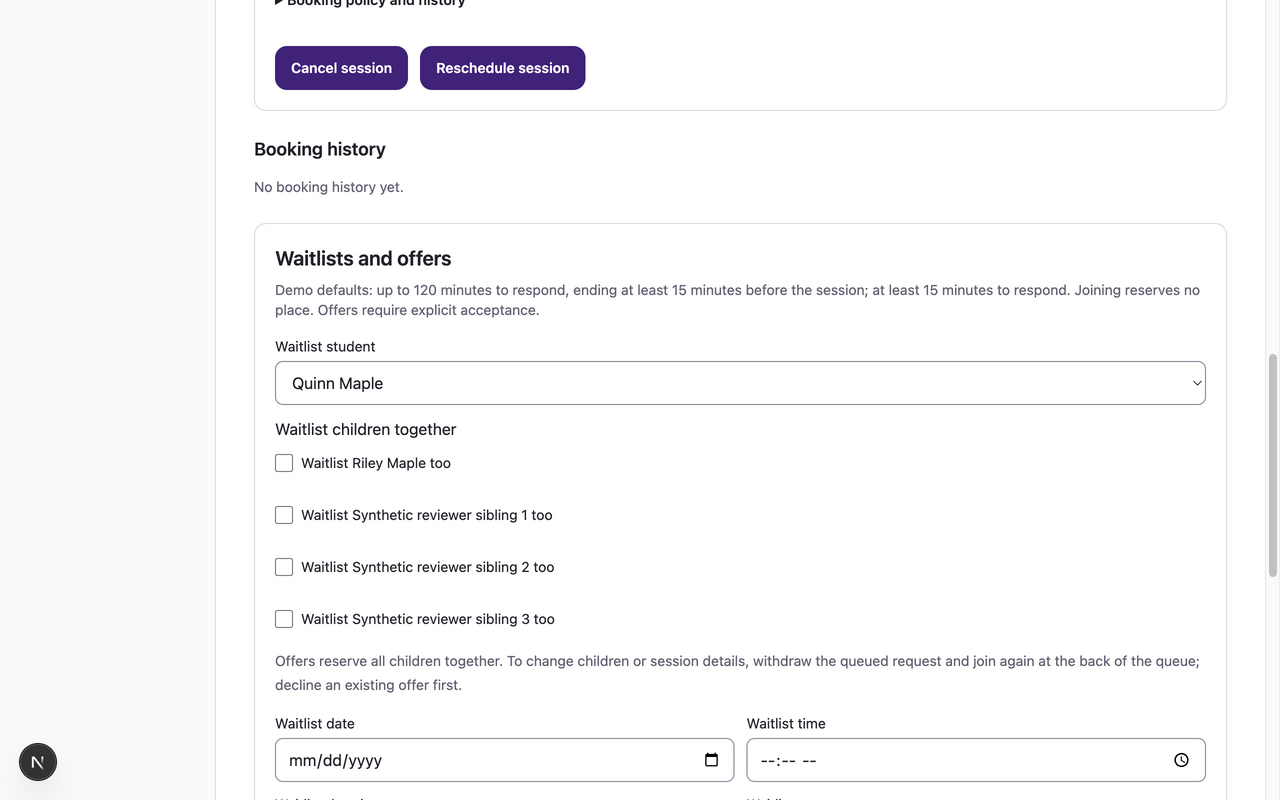
- Open My Sessions, choose Booking student, and find the session in Upcoming sessions. Booking policy and history shows the policy saved with that booking.
- Choose Cancel session or Reschedule session. Set Change scope to This occurrence or This and future confirmed occurrences. Past history is preserved.
- For rescheduling, set Session date, Session time, Session type and Session duration. For future scope, Replace remaining dates with a weekly pattern lets you choose weekdays and Last possible date.
- Choose Preview booking change. Read the original occurrences that will be canceled and any Late cancellation warning. For rescheduling, explicitly select available replacement dates.
- Acknowledge the displayed policy and late warnings when required. Choose Confirm cancel or Confirm reschedule, wait for Booking change saved, then review Upcoming sessions and Booking history.
What to expect
The confirmed scope changes together. A failed reschedule leaves the original booking in place. Existing bookings keep their saved policy even if center settings change later.
If something goes wrong
- Read the preview carefully: future scope cancels all listed original occurrences and replaces them only with the dates you select, even if the new pattern contains fewer dates.
- Late-policy acknowledgment is required when shown. The app records policy handling; it does not calculate or collect fees. A manager can provide an optional waiver reason where supported.
- Stale or unavailable replacements require a fresh preview. Check the original session before retrying after a lost connection; do not assume an error canceled it.
Examples from a synthetic center
Screenshots use fictional people and sample dates/policies. Your center’s labels, dates and configured values may differ. All steps above are complete without images.