Book a one-time session
Choose an available group or private session for your child.
Before you start
Parent access to the student and a published, open date with enough capacity for the whole session. All booking dates/times use the center’s configured timezone.
Open the parent workspaceSteps
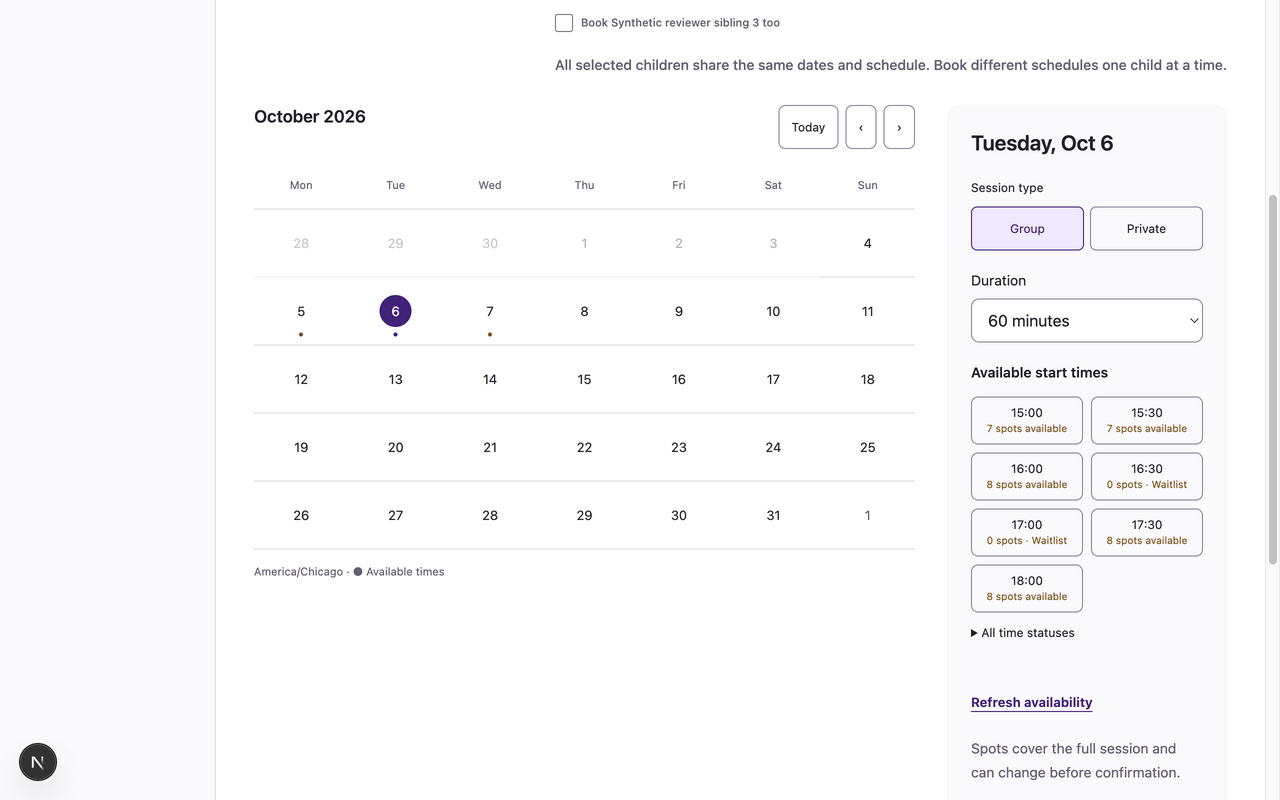
- Open Schedule. Choose Booking student and optional Book <child> too selections, then choose a date in the monthly calendar. Previous month, Next month and Today change the calendar view.
- Choose Group or Private and a Duration offered by the center. Choose an available start time under Available start times. Spot counts cover the full session, include held places, and remain advisory until confirmation. Use Refresh availability for current counts; All time statuses explains unavailable times.
- Choose Review session. In Review and confirm, check the student, date, time, duration, type and displayed policy.
- Under Explicitly select dates to confirm, select the available date. Check I acknowledge the displayed policy and any late-cancellation warnings.
- Choose Confirm selected dates. Wait for Booking change saved. Open My Sessions and verify the student’s Upcoming sessions.
What to expect
The selected date confirms for every selected child together. Each child can later be canceled or rescheduled independently. A private reservation does not expose the assigned instructor to parents.
If something goes wrong
- Unpublished dates, closures, inactive students and insufficient whole-interval capacity cannot be booked. Opening hours alone do not create places. Try another available date/time or ask your center manager.
- Full times may offer Join waitlist; a waitlist request is not a booking. Overlapping student bookings and changed capacity are checked again at confirmation.
- If a preview becomes stale or the connection fails, refresh/review the dates and check My Sessions before trying again. Weekly targets are advisory, not guaranteed places or hard limits.
Examples from a synthetic center
Screenshots use fictional people and sample dates/policies. Your center’s labels, dates and configured values may differ. All steps above are complete without images.