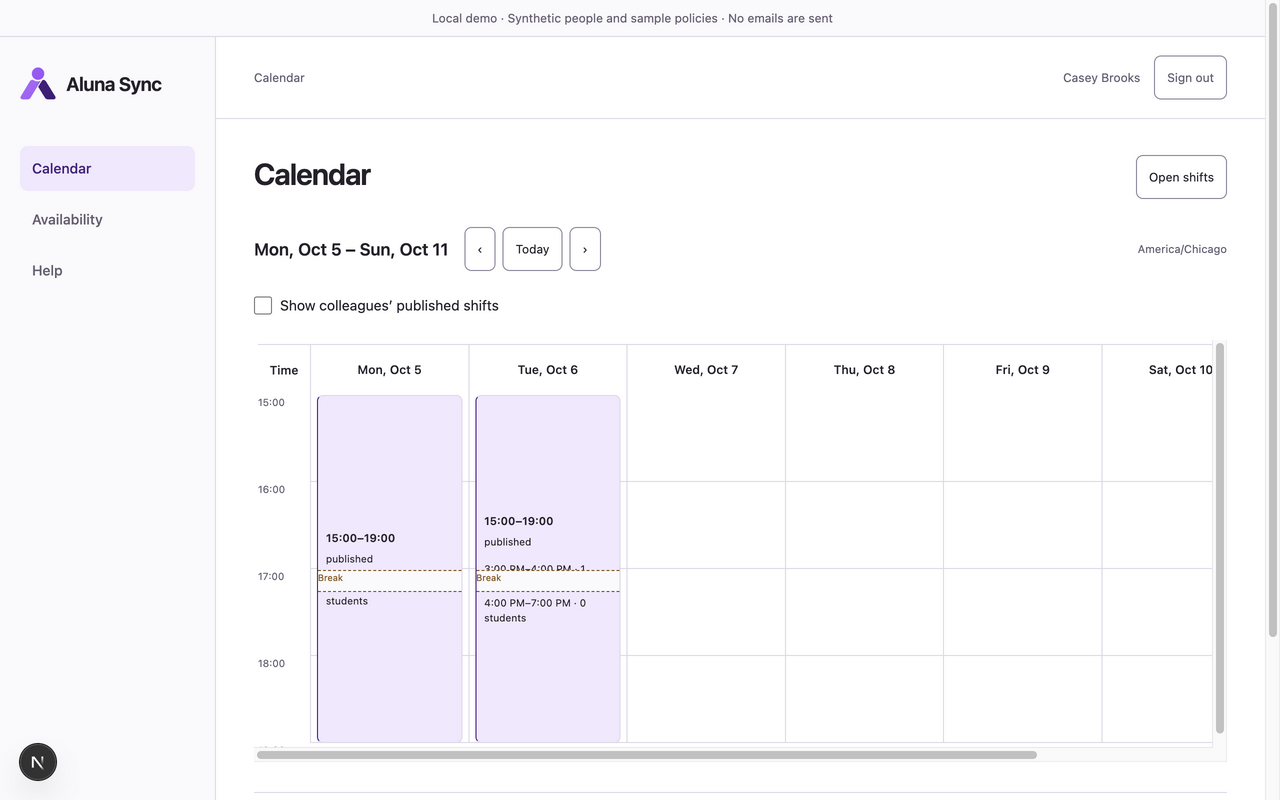
Read shifts, breaks and teaching counts
Check your assigned work and the limited colleague view.
Before you start
Instructor sign-in. A manager must assign/publish staffing before it contributes bookable capacity.
Open the instructor workspaceSteps
- Open Calendar and navigate to the relevant week/date. At narrow widths, read the agenda list; on desktop, use the schedule lanes.
- Select an assigned shift to read its times and breaks. Read the displayed group/private teaching counts for the time interval; breaks contribute no teaching capacity.
- Enable Show colleagues’ published shifts if you need the colleague view. Read names and published shift times only; this does not grant student records or colleague teaching detail.
- Open Availability and inspect shift details if you see a review warning. Return to Calendar after the manager resolves the scheduling question.
What to expect
You can read your shifts, breaks and aggregate teaching counts. Instructors do not receive student names, family records, attendance reports or reservation identities.
If something goes wrong
- No shifts assigned means no assigned shifts in the selected range; check another date and ask your manager. Open/pending/draft positions are not confirmed assigned work.
- A conflict warning preserves the current assignment. Do not treat it as an approved absence or automatic cancellation.
- Colleague visibility is intentionally limited to published staffing. A blank colleague view is not evidence that a colleague has no availability or student bookings.
Examples from a synthetic center
Screenshots use fictional people and sample dates/policies. Your center’s labels, dates and configured values may differ. All steps above are complete without images.