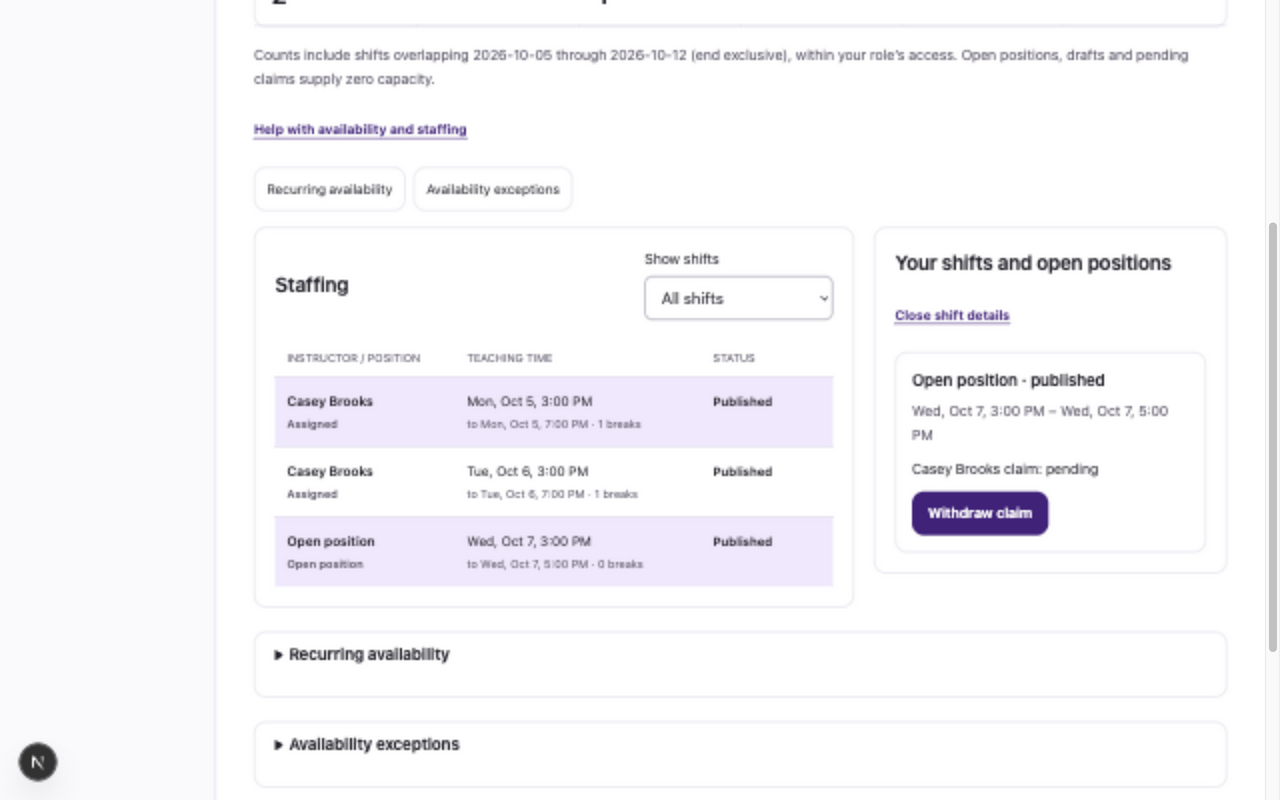
Request an open shift
Claims require manager approval before becoming assigned work.
Before you start
A future published open shift for which you are eligible and available, with no conflicting assigned time.
Open the instructor workspaceSteps
- Open Availability and use Show shifts to locate open staffing in the selected date range. Select the open shift to open its details.
- Review its dates, times and breaks. If eligible, choose Request this shift.
- Check the claim status. Pending means a manager still needs to review it; you can choose Withdraw claim while pending.
- After a manager approves the claim, refresh and check your assigned Calendar. A rejected or withdrawn claim does not assign the shift.
What to expect
An approved claim assigns the published shift to you. Merely requesting a shift creates no teaching capacity and is not an assignment.
If something goes wrong
- Not eligible to claim means you should check availability, assigned time and shift start. Closed/started/canceled or conflicting shifts cannot be claimed.
- A pending claim may need manager attention. Check the status before resubmitting; repeated requests do not speed approval.
- If the shift changed or another claim was approved, refresh and review the current details. Ask your manager about a different eligible shift.
Examples from a synthetic center
Screenshots use fictional people and sample dates/policies. Your center’s labels, dates and configured values may differ. All steps above are complete without images.