Submit availability and exceptions
Tell managers when you are available without changing assigned shifts.
Before you start
An active instructor account. Availability uses the center’s timezone; effective dates are inclusive.
Open the instructor workspaceSteps
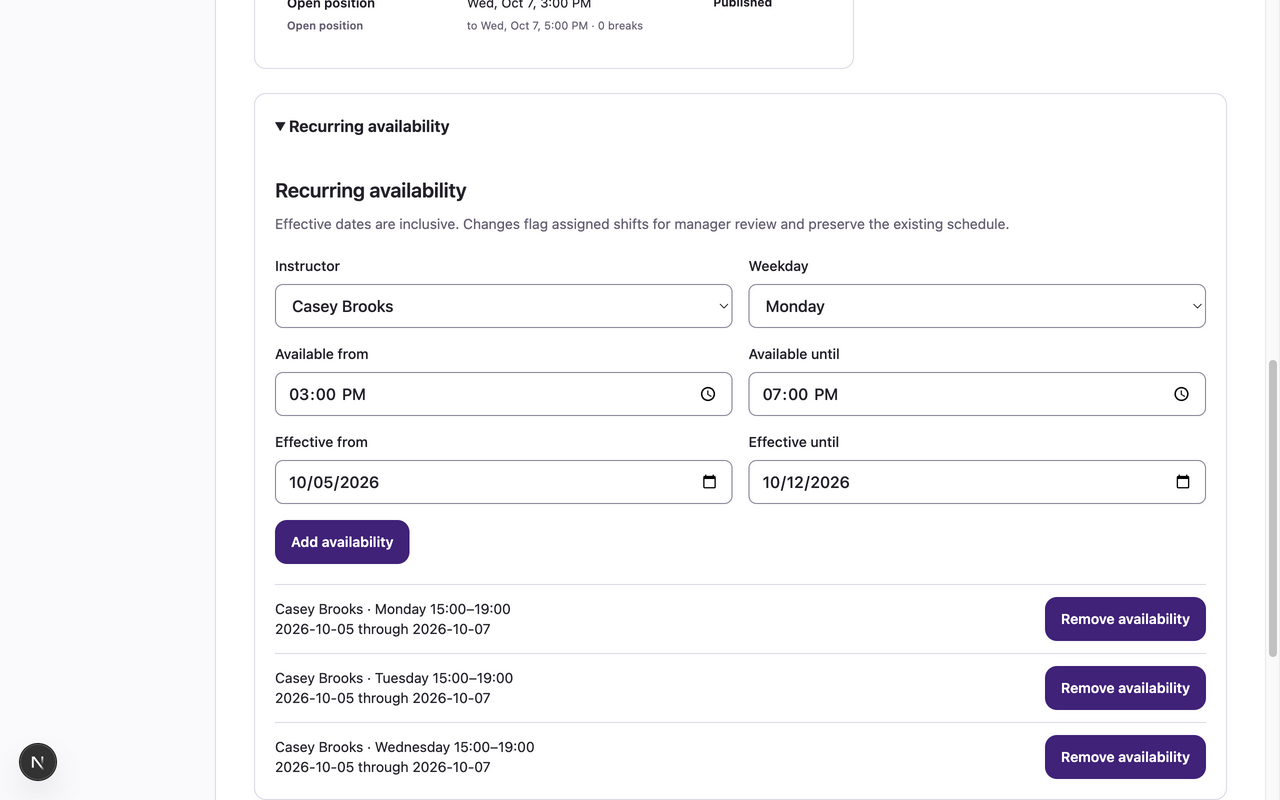
- Open Availability → Recurring availability. Choose Weekday, Available from, Available until, Effective from and Effective until, then Add availability.
- Check the saved rule in the list. Use Remove availability to remove that rule if needed.
- Open Availability exceptions. Choose Exception type: Unavailable or Additional availability. Set Exception start and Exception end, then Add exception.
- Review the exception list and your assigned schedule. Unavailable intervals override recurring availability and additions. Changes may flag assigned shifts for manager review.
What to expect
Availability is saved for planning and claim eligibility. It does not cancel, reassign or publish shifts; existing assignments remain in place until a manager handles them.
If something goes wrong
- Use an end later than the start and valid center-local times. Overlapping/unavailable time can prevent claims or require manager review.
- An Availability conflict warning means the shift remains assigned. Contact the manager to reconcile it rather than assuming the shift disappeared.
- If you lose a connection, refresh the rule/exception lists before resubmitting. Instructors can edit only their own availability.
Examples from a synthetic center
Screenshots use fictional people and sample dates/policies. Your center’s labels, dates and configured values may differ. All steps above are complete without images.