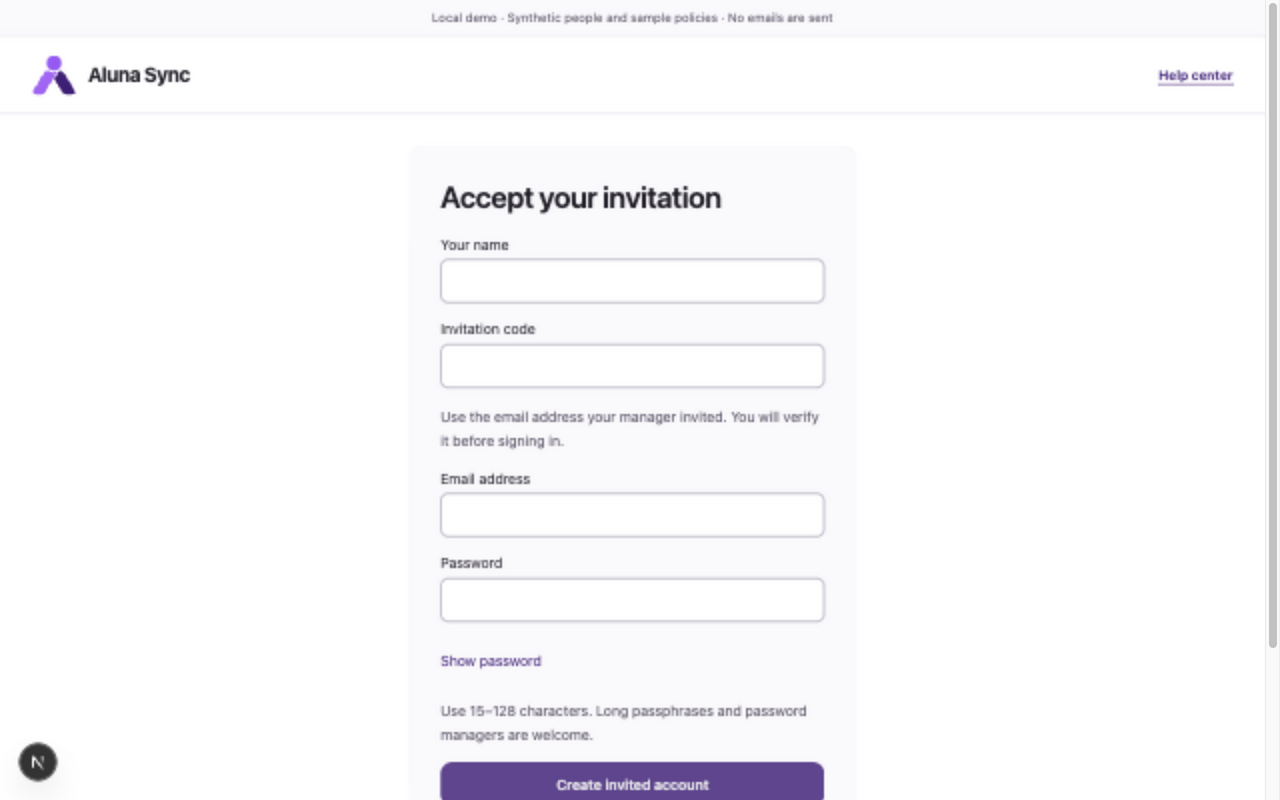
Accept an invitation and verify your email
Set up the account your center invited you to use.
Before you start
A current invitation from your center manager, its invitation code, and access to the invited email address. Aluna Sync is invitation-only; there is no public registration.
Steps
- Open your role’s sign-in page and choose Have an invitation? Open the invitation link supplied by your center instead if you have one.
- Enter Your name, Invitation code and the exact Email address that was invited. Choose a Password of 15–128 characters; a password manager or long passphrase is welcome.
- Choose Create invited account. The account’s role and family access come from the invitation, not from the sign-in page you came from.
- Check the invited mailbox for a verification message. Open the link and choose Verify email. Do not share the invitation code or verification link.
- After Email verified, choose Back to sign in. Enter your credentials on the account’s role page. Verification does not automatically sign you in.
What to expect
Your verified account opens its own workspace. Parent family access and instructor profiles are created from the invitation.
If something goes wrong
- Invitation codes expire after seven days and can be revoked. Ask your manager to issue a current invitation. A replacement for a pending account must keep its original role and family.
- Verification links expire after fifteen minutes. On your sign-in page, enter your email and choose Resend verification email, then use the newest link. The response is generic even if the account is unavailable.
- An old verification link cannot activate a revoked invitation. Ask your manager about a replacement and request a fresh verification message. Avoid repeatedly creating accounts or using another email as a workaround.
Examples from a synthetic center
Screenshots use fictional people and sample dates/policies. Your center’s labels, dates and configured values may differ. All steps above are complete without images.